
Local model serving - Using Ollama

As an AI enthusiast, I always want quick access to large language models (LLMs) for experimenting with new tools and frameworks. We can always subscribe to cloud-hosted models such as OpenAI GPT or Anthropic Claude. However, these are expensive, and I prefer running a few models locally while still in the experimentation phase. Local execution also enables full customization and integration into local workflows, providing offline access and reduced latency for faster, more reliable responses. Additionally, it provides control over model updates and configurations, preventing disruptions caused by changes from cloud providers and enabling independent experimentation.

There are several options available for running Large Language Model (LLM) inference locally. Ollama is one such option and my favorite among all. Ollama offers access to a wide range of models and has recently enabled cloud-hosted models as well. It offers both CLI and GUI (chat interface) to interact with the loaded models.

In today’s article, we will learn about Ollama and explore its capabilities.

Get started

Ollama provides the easiest way to run LLMs on your local machine. Ollama is available on Windows, macOS, and Linux. Once you install Ollama, it will run as a startup process. You can use Ollama CLI to download and run models.

 1
 2
 3
 4
 5
 6
 7
 8
 9
10
11
12
13
14
15
16
17
18
19
20
21
22
23
24
25
26
PS C:\> ollama
Usage:
  ollama [flags]
  ollama [command]

Available Commands:
  serve       Start ollama
  create      Create a model
  show        Show information for a model
  run         Run a model
  stop        Stop a running model
  pull        Pull a model from a registry
  push        Push a model to a registry
  signin      Sign in to ollama.com
  signout     Sign out from ollama.com
  list        List models
  ps          List running models
  cp          Copy a model
  rm          Remove a model
  help        Help about any command

Flags:
  -h, --help      help for ollama
  -v, --version   Show version information

Use "ollama [command] --help" for more information about a command.

To download a model, you can use ollama pull or ollama run. The run command will load the model if it is already available in the local cache. If not, it will download the model weights.

For the model names, refer to the model registry.

 1
 2
 3
 4
 5
 6
 7
 8
 9
10
11
PS C:\> ollama pull llama3.2:3b
pulling manifest
pulling dde5aa3fc5ff: 100% ▕███████████████▏ 2.0 GB
pulling 966de95ca8a6: 100% ▕███████████████▏ 1.4 KB
pulling fcc5a6bec9da: 100% ▕███████████████▏ 7.7 KB
pulling a70ff7e570d9: 100% ▕███████████████▏ 6.0 KB
pulling 56bb8bd477a5: 100% ▕███████████████▏   96 B
pulling 34bb5ab01051: 100% ▕███████████████▏  561 B
verifying sha256 digest
writing manifest
success

The downloaded model can be served using the run command.

1
2
3
4
5
6
7
PS C:\> ollama run llama3.2:3b
>>> In one sentence, what is a Llama?
A llama is a domesticated mammal native to South America, closely related to camels and alpacas, known for its
distinctive long neck, soft fur, and gentle temperament.

>>> /bye
PS C:\>

You can exit the chat interface by specifying /bye as the command. The model remains loaded for a few minutes (default is 5 minutes) even after you exit the chat interface.

1
2
3
PS C:\> ollama ps
NAME           ID              SIZE      PROCESSOR    CONTEXT    UNTIL       
llama3.2:3b    a80c4f17acd5    2.8 GB    100% CPU     4096       2 minutes from now

As shown above, in this case, the model remains loaded for an additional 2 minutes. You can keep it loaded for additional time using the --keepalive optional parameter.

1
2
3
4
5
6
PS C:\Users\ravik> ollama run llama3.2:3b --keepalive 10m
>>> /bye

PS C:\Users\ravik> ollama ps
NAME           ID              SIZE      PROCESSOR    CONTEXT    UNTIL
llama3.2:3b    a80c4f17acd5    2.8 GB    100% CPU     4096       9 minutes from now

Besides the ollama run and ollama pull commands, you can also a serve a model using the ollama serve command. This command starts a local web server and starts serving the locally available models. By default, this endpoint listens at port 11434. You can change the behavior of this command by settings the environment variables listed in the command help.

 1
 2
 3
 4
 5
 6
 7
 8
 9
10
11
12
13
14
15
16
17
18
19
20
21
22
23
24
25
26
27
28
29
PS C:\> ollama serve -h
Start ollama

Usage:
  ollama serve [flags]

Aliases:
  serve, start

Flags:
  -h, --help   help for serve

Environment Variables:
      OLLAMA_DEBUG               Show additional debug information (e.g. OLLAMA_DEBUG=1)
      OLLAMA_HOST                IP Address for the ollama server (default 127.0.0.1:11434)
      OLLAMA_CONTEXT_LENGTH      Context length to use unless otherwise specified (default: 4096)
      OLLAMA_KEEP_ALIVE          The duration that models stay loaded in memory (default "5m")
      OLLAMA_MAX_LOADED_MODELS   Maximum number of loaded models per GPU
      OLLAMA_MAX_QUEUE           Maximum number of queued requests
      OLLAMA_MODELS              The path to the models directory
      OLLAMA_NUM_PARALLEL        Maximum number of parallel requests
      OLLAMA_NOPRUNE             Do not prune model blobs on startup
      OLLAMA_ORIGINS             A comma separated list of allowed origins
      OLLAMA_SCHED_SPREAD        Always schedule model across all GPUs
      OLLAMA_FLASH_ATTENTION     Enabled flash attention
      OLLAMA_KV_CACHE_TYPE       Quantization type for the K/V cache (default: f16)
      OLLAMA_LLM_LIBRARY         Set LLM library to bypass autodetection
      OLLAMA_GPU_OVERHEAD        Reserve a portion of VRAM per GPU (bytes)
      OLLAMA_LOAD_TIMEOUT        How long to allow model loads to stall before giving up (default "5m")

For example, if you want to run at API endpoint at port 8080, you can run the following command.

1
2
PS C:\> $env:OLLAMA_HOST="127.0.0.1:8080"
PS C:\> ollama serve

The Ollama GUI runs in the background and it runs at port 11434. If you run ollama serve without setting the OLLAMA_HOST environment variable, the command fails.

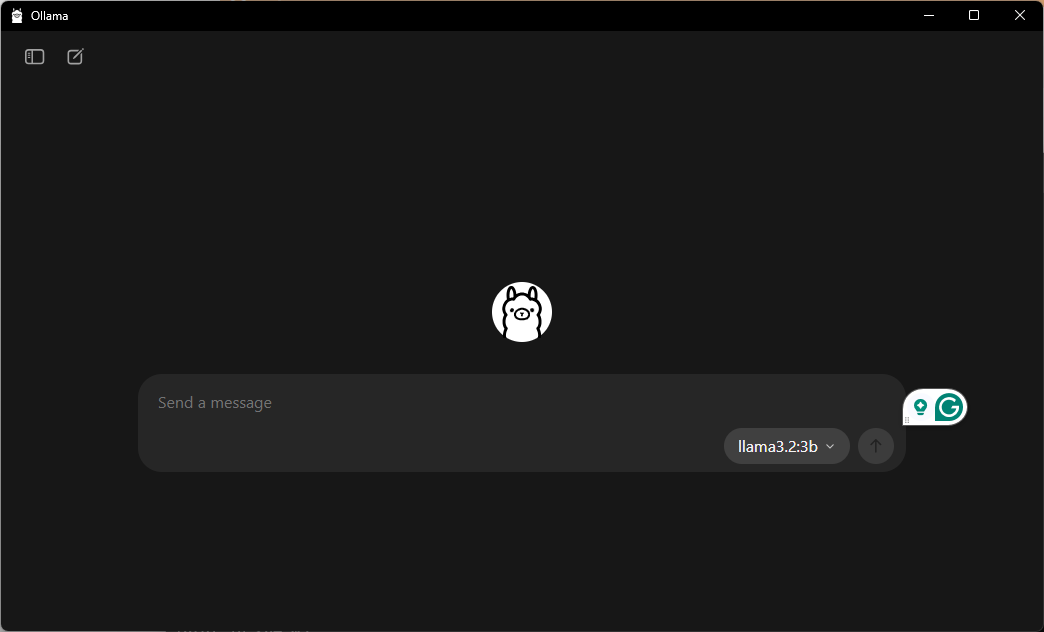
Ollama GUI

Ollama features a minimal GUI interface as well.
Ollama GUI

I like this GUI and use it often to quickly chat with a few models running locally or in the cloud!

Ollama API

You can programmatically interact with the model using the Ollama API. This is a typical REST API. You can use the official SDKs to abstract the complexity of dealing with the REST API directly. The Ollama API is OpenAI compatible, and therefore, the programs you write can easily be switched to use alternate OpenAI-compatible model serving APIs. The following example demonstrates the use of the Ollama Python SDK.

 1
 2
 3
 4
 5
 6
 7
 8
 9
10
11
from ollama import chat
from ollama import ChatResponse

response: ChatResponse = chat(model='llama3.2:3b', messages=[
  {
    'role': 'user',
    'content': 'In one sentence, what is a Llama?',
  },
])

print(response.message.content)

When you run this, you will see the response from the model.

1
2
(.venv) PS C:\> python .\01-get-started.py
A llama is a domesticated mammal native to South America, closely related to camels and alpacas, known for its distinctive appearance, soft wool, and gentle temperament.

Cloud models

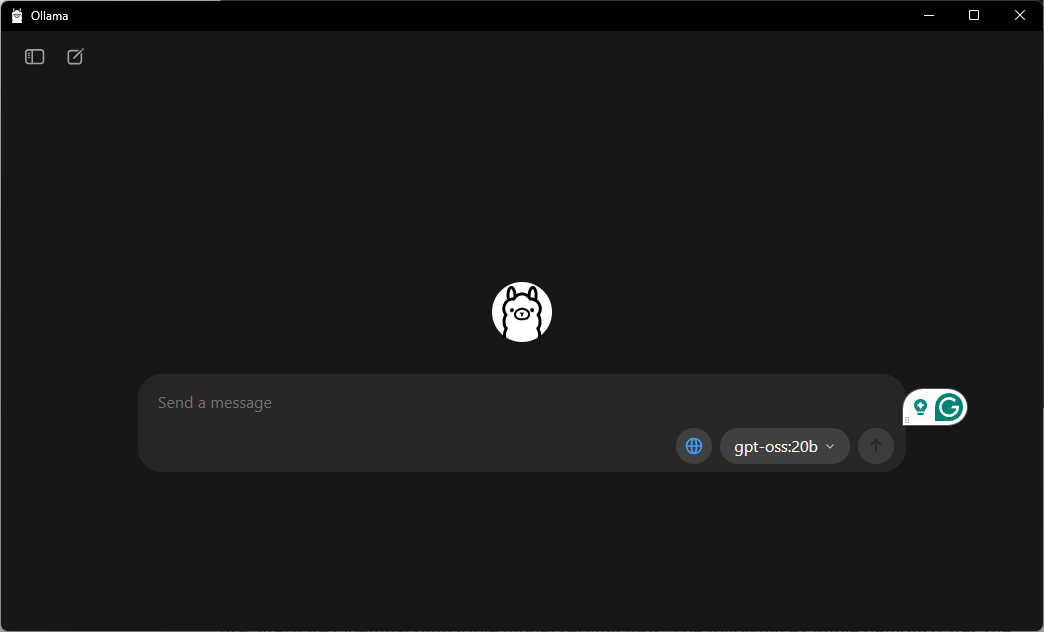
With the recent update, Ollama now supports accessing Ollama cloud-hosted models. These are especially useful when you do not have the local compute to run larger models. As of this writing, the following models are available.

  • qwen3-coder:480b-cloud
  • gpt-oss:120b-cloud
  • gpt-oss:20b-cloud
  • deepseek-v3.1:671b-cloud

These models can be accessed at the command line as well as the cloud.
Ollama GUI

Overall, Ollama has been my go to way of serving models locally and quick experimentation. I have tried a few more methods that I will write about in the future articles.

Last updated: 29th September 2025